
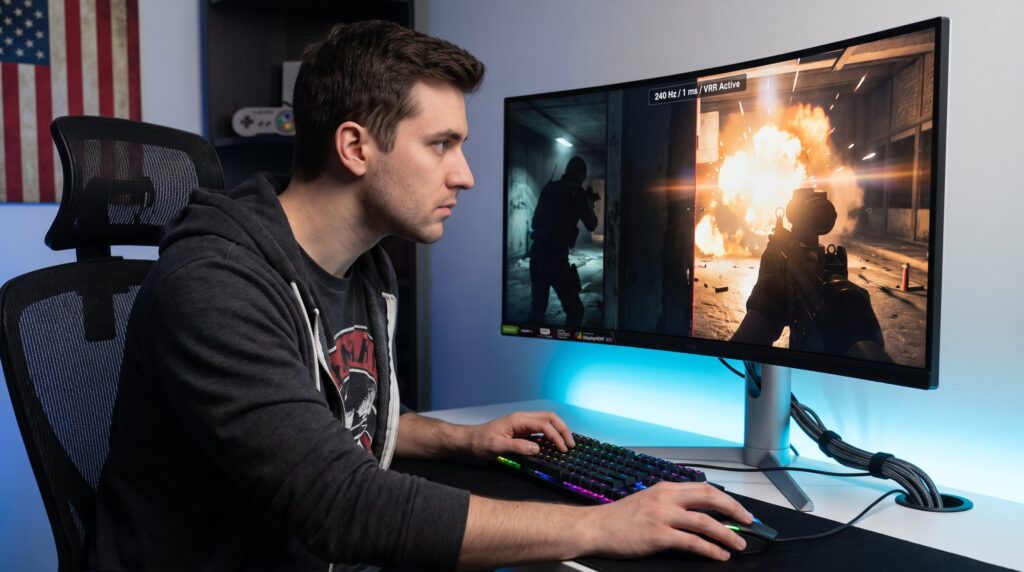
Gaming Monitor Features That Matter Most During Play set the baseline for what a player notices in the first heartbeat of a match. This guide focuses on the technical differences that change outcomes: refresh rate, pixel response, input lag, adaptive sync, HDR fidelity, and the practical trade-offs between resolution and ports. It targets players who want clear, actionable choices rather than vague marketing claims. The sections that follow answer which specs to prioritize for responsiveness, which to choose for visual fidelity, and how to match a monitor to a real GPU and playstyle.
Key Takeaways
- Choosing a gaming monitor with a high refresh rate significantly improves motion clarity and responsiveness during play, especially moving from 60 Hz to 144 Hz or higher.
- Low response time and minimal input lag are critical for gaming monitors to ensure actions feel instantaneous and reduce visual ghosting.
- Adaptive sync technologies like AMD FreeSync and NVIDIA G‑Sync prevent screen tearing and stuttering by matching the monitor’s refresh rate to the GPU’s output consistently.
- True HDR performance depends on peak brightness, local dimming, and contrast ratio rather than just HDR labeling—look for certifications like DisplayHDR 600 for real visual enhancements.
- Selecting the right resolution and matching it with proper ports (e.g., DisplayPort 1.4 or HDMI 2.1) is essential to sustain high refresh rates without compromising color depth or frame rate.
- Balancing refresh rate, input lag, adaptive sync, HDR quality, and resolution-port compatibility leads to faster reaction times and a more immersive gaming experience.
Refresh Rate And Motion Clarity
Fact: Higher refresh rates directly improve motion clarity and target tracking. A 144 Hz panel shows 144 discrete frames per second, 240 Hz shows 240, and 360 Hz-plus reduces perceived blur and the time between consecutive frames.
Why this matters in play: In fast shooters and racing games, the extra frames shorten the window between visual samples. That means a player sees an opponent earlier and can aim corrective micro-movements faster. For example, moving from 60 Hz to 144 Hz commonly produces a noticeable improvement in tracking: moving from 144 Hz to 240 Hz gives diminishing but still meaningful gains for elite reflexes.
Practical note: A monitor’s advertised refresh rate only helps if the GPU can deliver frames consistently. If the system drops below the panel’s rate, benefits fall off unless adaptive sync is active. For help choosing a panel focused on refresh performance, see the RevolverTech piece on high refresh refresh rate monitors.
Warning: Ultra-high refresh is less useful at 4K without a very powerful GPU. Choose the refresh/resolution pair that matches the player’s actual frame rates.
Response Time, Input Lag, And Real-World Responsiveness
Fact: Low response time and low input lag are distinct but both essential. Response time measures how quickly pixels change (usually GtG): input lag measures the delay between input and visible result.
Real-world effect: A 1 ms GtG spec reduces visible ghosting in high-contrast moves. Input lag under about 5–10 ms is effectively imperceptible to most players. Competitive gamers chase sub-5 ms total system latency to ensure actions feel instant.
Example: An LCD with 1 ms GtG will show crisper trails than a 4 ms panel during swift camera pans: an OLED can shave that further to near-instant pixel transitions. But a display with 1 ms response and 30 ms input lag still feels sluggish: both numbers matter.
Measured testing matters: Published specs can hide measurement methodology. Independent testing and user reports, like those compiled in RevolverTech’s performance tracking, help separate marketing claims from real responsiveness: read how continuous monitoring helps here: performance evolution.
Practical tip: For low-latency play, set the monitor to its game mode, use a direct DisplayPort or high-bandwidth HDMI connection, and avoid post-processing image enhancements that add ms of delay.
Adaptive Sync And Frame Pacing To Prevent Tearing And Stutter
Fact: Adaptive sync matches the monitor’s refresh rate to the GPU’s frame output to remove tearing and reduce stutter without the latency hit of traditional V‑Sync.
Why players notice it: When frame rates fluctuate, say from 200 fps down to 120 fps during a graphically busy scene, adaptive sync smooths the transition and keeps motion coherent. Without it, frames tear or appear choppy, which breaks tracking and aim.
Standards: AMD FreeSync, NVIDIA G‑Sync, and the broader VRR ecosystem accomplish this. The important detail is the monitor’s supported VRR range (the frame-rate window where sync works well). Monitors with wide ranges and low minimum refresh points deliver smoother play across variable GPU performance.
Practical scenario: If a PC averages 160 fps but dips to 100 fps in firefights, a monitor with a broad adaptive sync window prevents sudden jumps and gives the player continuous feedback. For broader context on why flow and lag often beat raw graphics, see the RevolverTech analysis on load time article.
Warning: Some adaptive sync implementations can introduce frame pacing issues if the monitor’s firmware is poorly tuned. Choose panels from manufacturers with good track records or those that have positive independent reviews. It helps to cross-reference the games guide when weighing these options.
Color Accuracy, Contrast Ratio, And HDR That Matter In Games
Fact: Color gamut, contrast, and genuine HDR implementation determine how much visual detail a player perceives in scenes with bright highlights and deep shadows.
Visible impact: Wide color gamuts, near DCI‑P3 coverage, make game worlds feel vivid and accurate. Strong contrast, particularly from OLED or well-tuned VA panels, reveals hidden enemies in dark corners. HDR raises highlight brightness for explosions and sun glare: when done properly, it preserves shadow detail too.
Concrete numbers: Look for >90% DCI‑P3 for vibrant color and high native contrast ratios (VA panels often reach 3000:1: OLEDs effectively have infinite contrast). Peak brightness matters for HDR: panels below ~400 nits struggle to deliver meaningful HDR highlights.
Trade-offs: Some monitors sacrifice contrast for speed (TN panels), while others prioritize visuals at the cost of slower response. Players must choose based on whether they value competitive clarity or cinematic immersion.
Link: For a practical frame of reference on why sound and perception matter together, RevolverTech’s analysis of audio cues is useful: sound piece.
HDR Implementation Versus Marketing Claims
Fact: An HDR label does not guarantee a visible HDR upgrade. Effective HDR requires higher peak brightness, local dimming, and proper tone mapping.
Common mismatch: Many monitors carry HDR10 support but lack the brightness or contrast to show true HDR highlights. A monitor with 450 nits and no local dimming will look closer to SDR than a true HDR display with >1000 nits and zone dimming.
Certifications: Look for reliable indicators like DisplayHDR 600 or DisplayHDR TrueBlack tiers. These certifications set minimums for brightness and contrast behavior and reduce the risk of buying HDR in name only.
Practical warning: Marketing often highlights “HDR ready” or “HDR support.” Players should inspect HDR peak nit ratings and local dimming features. When possible, read hands‑on reviews that demonstrate in-game HDR scenes.
External verification: For additional buying criteria and test methods, consult authoritative buying guides that cover HDR performance in monitors.
Ports, Resolution, And Scaling Trade-Offs For Performance
Fact: The chosen resolution and port bandwidth determine whether a monitor can sustain high refresh rates without compromise.
Practical consequences: DisplayPort 1.4 and HDMI 2.1 carry higher bandwidths needed for 1440p at 240 Hz or 4K at 120–240 Hz. If the port or cable can’t handle the combination, the monitor will downshift refresh or color depth.
Resolution versus frame rate: Higher resolution increases GPU load. To keep frame rates high, players either lower in‑game settings, enable resolution scaling, or choose a lower resolution panel. Competitive players often pick 1080p or 1440p at high Hz instead of native 4K at lower fps.
Example decision: A player with a midrange GPU aiming for 240 Hz should prioritize a 1080p or 1440p panel rather than 4K, which would force frequent frame drops. For practical device-level advice and trade-offs, RevolverTech’s PC upgrade comparison helps match hardware expectations: gaming 2000 upgrade.
Compatibility tip: Use high-quality certified cables and verify the monitor’s spec sheet for the exact refresh/resolution combinations supported.
Conclusion
Insight: For decisive responsiveness prioritize refresh rate, low response time, input lag, and adaptive sync. For immersive visuals prioritize real HDR, strong contrast, and accurate color. Match resolution and ports to the GPU’s realistic frame-rate target. Players who balance these trade-offs will notice faster reactions and clearer visual cues.
Next step: For a broader collection of gear reviews, updates, and practical player resources see the RevolverTech gaming info hub.