
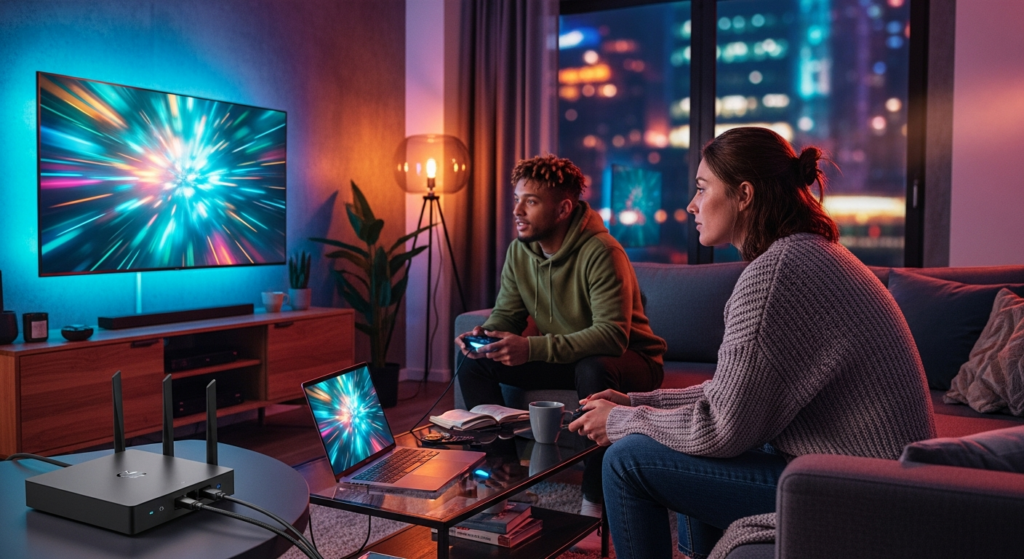
Most people flip on a VPN expecting better privacy, then switch it right back off the moment a movie starts buffering, or a multiplayer match turns into a slideshow. The software usually gets the blame, but the real culprit is almost always a handful of fixable configuration choices.
Understanding how to set up a VPN without killing your internet speed means getting familiar with how protocols, server distance, and your actual hardware interact. Over 50% of VPN users turn to these tools specifically for streaming content, which means performance isn’t a secondary concern; it’s just as important as data protection. A few smart adjustments can lock down your home network while keeping your connection quick enough for 4K video and competitive gaming.
Why VPNs slow down in the first place
Encryption adds overhead, but bad settings cause the biggest losses
Every VPN encrypts your internet traffic, and that mathematical process costs computing power and time. When your data travels through an encrypted tunnel, the physical distance to the provider’s server directly affects your latency and overall throughput.
Older encryption protocols make this worse by creating processing bottlenecks that interrupt the stuff you actually care about: streaming, gaming, and video calls. The global demand for these tools reflects how mainstream privacy software has become, with the market valued at $48.01 billion in 2024 and projected to reach $121.53 billion by 2032. Even as the software keeps improving, outdated devices and cheap home routers can still choke those encrypted data streams before they ever reach your screen.
Not every slowdown is the VPN’s fault
Sound familiar? You blame the VPN, you disable it, and suddenly your speeds are… still bad. The underlying problem is often just Wi-Fi interference or an overloaded ISP, not anything the encryption software did. Local network congestion typically hits hardest during peak evening hours when your entire neighborhood streams video simultaneously, shrinking the available bandwidth for everyone on that node.
On top of that, your internet service provider may intentionally throttle speeds once you hit data caps or trigger high-bandwidth activity flags. North America holds the largest share of the Virtual Private Network VPN Market at 53.2% in 2024, meaning millions of users in the region experience the exact same evening slowdowns. Prior to adjusting any software configurations, establish a direct Ethernet connection between your hardware and the modem to establish an accurate baseline speed reading.
Start with the right setup goal for your home network
Device app vs. router setup
Your initial architectural choice is between an endpoint-level client installation and a network-wide router deployment. Deploying a dedicated client application on a single machine offers the most streamlined setup and typically preserves maximum throughput, as the local CPU manages the encryption overhead. Conversely, implementing the configuration at the gateway layer secures every host on the local area network—safeguarding smart TVs, streaming media players, and consoles lacking native client support. However, this method introduces a significant constraint: processing resource-intensive cryptographic protocols on consumer-grade routing hardware can severely bottleneck total bandwidth. Benchmark data shows that utilizing device-specific client profiles significantly reduces unexpected latency disruptions and connection drops compared to deployments anchored by resource-constrained residential gateways.
|
Setup option |
Best for |
Speed impact |
Difficulty |
Biggest tradeoff |
|
VPN app on one device |
Streaming laptop, phone, single-user setup |
Low to moderate |
Easy |
Protects only that device |
|
VPN on router |
Whole-home coverage, devices without VPN apps |
Moderate to high, depends on router |
Medium to hard |
Router hardware can bottleneck speed |
|
Smart DNS or split setup |
Streaming-focused users wanting less overhead |
Low |
Medium |
Less privacy than full VPN on all traffic |
When router setup makes sense
Network-level encryption makes the most sense for households running several smart devices at once. Smart TVs, streaming boxes like Roku or Apple TV, and modern gaming consoles frequently lack native app support, which means router-level protection is the only realistic way to cover them. If you want to maintain gigabit internet speeds through an encrypted router, upgrading to a model with a high-performance CPU isn’t optional; it’s basically a requirement. Nearly one in four users in the United States admits to bypassing regional restrictions, an activity that relies heavily on stable connections across multiple household screens simultaneously. If protecting every single data packet matters more to your household than hitting maximum download speeds, investing in capable routing hardware is the clearest path forward.
Choose the speed settings that matter most
Pick a modern protocol first
Choosing the right transmission protocol is probably the single most impactful adjustment you can make, and it costs you nothing to change. WireGuard is the best starting point for most modern networks because it requires less computing power and runs efficiently even under load. WireGuard is widely regarded as the preferred option for speed and lower latency, especially on crowded networks like airports, stadiums, and fan parks. If WireGuard causes compatibility issues with your setup, switching to OpenVPN UDP is a reliable backup for most streaming use cases. Avoid using OpenVPN TCP for daily entertainment entirely; its strict packet-checking mechanics cause noticeable buffering during high-definition playback and will frustrate you quickly.
Stay close to your real location
Selecting the nearest physical server is one of the easiest wins available, and it’s one that many users overlook when they first start exploring their server list. Connecting to a node in your own city minimizes the physical distance your data travels before reaching its destination, which directly lowers your ping. Choosing a server halfway across the globe forces your data through dozens of routing points, creating unavoidable latency that no protocol can fully compensate for. Streaming and gaming users consistently prioritize low latency and unlimited bandwidth when picking connection points, and proximity is a far stronger factor than any novelty location you might want to test. Always sort your server list by distance or ping, and pick the closest available option whenever you sit down for a competitive session.
Turn on only the features you actually need
Modern VPN apps ship with a lot of extra security toggles, and turning all of them on at once will noticeably drag down your speeds. Multi-hop features that route your connection through two separate countries offer excellent security for sensitive browsing, but they introduce extreme latency that makes multiplayer gaming genuinely unplayable. A kill switch is worth keeping active if you care about strict privacy; just make sure it isn’t triggering unnecessarily during minor network stutters, which can kick you off a server mid-session. Using split tunneling to remove non-sensitive apps from the encrypted tunnel reduces bandwidth strain and keeps your primary activities running at full speed. If you already run dedicated antivirus software, turn off any redundant threat-blocking features built into the VPN; they’re just burning processing power for protection you’ve already got covered.
5 settings to change first for better VPN speed:
- Switch to WireGuard
- Connect to the nearest low-load server
- Use Ethernet instead of Wi-Fi when possible
- Turn off double-hop or extra routing features
- Enable split tunneling for apps that don’t need the VPN
When you’re comparing providers for a VPN for streaming, start by evaluating three things: protocol support, server spread, and whether the service offers split tunneling or router compatibility. Those foundational elements dictate your actual daily performance far more than any marketing claim about absolute anonymity or theoretical maximum speeds. Recent speed testing across leading providers shows many now keep speed loss below 10% under optimal conditions, largely thanks to modern protocols like WireGuard. Whichever provider you choose, ensure it provides unlimited bandwidth and a transparent list of server locations so you can always find a fast node near home. A deep server footprint also helps prevent individual nodes from getting swamped during major sporting events or highly anticipated season premieres.
IPVanish is a provider worth evaluating if you care about privacy tools and home entertainment performance in a single package. Its streaming-focused offering highlights WireGuard support, router compatibility, DNS leak protection, and a reliable kill switch. The service also provides native apps built for platforms like Fire TV and Apple TV, which matters a lot when you want encrypted coverage on your living room devices without introducing unnecessary slowdowns. For context on how much demand this kind of infrastructure needs to handle: global encrypted traffic is projected to scale heavily over the next several years. Choosing a provider with a broad roster of nearby servers helps keep your connection fast and consistent when demand peaks.
Set up your VPN step by step without hurting performance
Step 1: Test your speed before installing anything
Before you download any new software or touch a single network setting, get an accurate picture of your baseline internet speed. Run at least three separate speed tests over a wired Ethernet connection and average the results across download speed, upload speed, and ping. Do these tests during the same time of day you normally stream or game, since evening congestion can skew your numbers significantly. One of the simplest ways to spot ISP throttling is to compare speed tests taken with and without a VPN running under similar conditions. These baseline numbers give you a real measuring stick for evaluating everything you change afterward.
Step 2: Install the VPN on the right device first
Start your optimization on a single streaming or gaming device rather than jumping straight to your router. Testing on one phone or laptop isolates variables and lets you confirm the service works properly before you risk disrupting your entire household’s connection. Always download the official app directly from the provider or your device’s certified app store; third-party versions can be outdated or, in the worst cases, compromised. This step matters more on mobile than most people realize: unsecured public Wi-Fi remains a primary vector for data interception and compromised user credentials, so getting comfortable with the app on your phone before you travel is genuinely good practice. Update your device’s operating system and the VPN app before you run any tests, to ensure the best available performance profile from the start.
Step 3: Select the fastest protocol and the nearest server
Once the app is installed, head straight to the settings menu and manually switch the protocol to WireGuard rather than leaving it on whatever the default is. Then pick a server in the city geographically closest to where you actually are, which is the quickest way to lock in the lowest possible ping. Most modern apps also display a server load percentage, letting you skip overcrowded nodes and find one with bandwidth to spare. The fastest apps on the market today can significantly reduce speed drops under these optimized conditions, according to recent infrastructure tests. Run a second speed test while connected to that server and stack the numbers against your baseline to see exactly what you’re working with.
Step 4: Fine-tune for streaming and gaming
Not where you expected this guide to go, right? Your optimization strategy actually needs to change depending on whether you’re prioritizing video playback or real-time gaming, because the two have different demands. Streaming 4K content needs a high-capacity, stable download speed to prevent buffering mid-episode; gaming needs low, consistent latency and clean packet delivery even more than raw throughput. Split tunneling lets you route only your media apps through the encrypted tunnel while regular browsing traffic moves freely without overhead, and that balance alone can make a noticeable difference. Consumer demand for reliable access to streaming platforms continues to surge, particularly during periods of platform restrictions or content geo-blocking. If you’re gaming on a console that doesn’t support a native VPN app, installing a router is your next logical step.
Step 5: Move to router setup only if your hardware can handle it
Shifting encryption to your central router is a significant step, and it requires appropriately powerful networking hardware, not just any device you happened to buy a few years ago. Entry-level consumer routers typically lack the processing muscle to encrypt and decrypt large data streams in real time, creating severe network bottlenecks that slow down every device in the house simultaneously. High-end routers or models running custom firmware like DD-WRT or OpenWRT handle cryptographic tasks far more efficiently and hold up under real-world streaming loads. Home users increasingly turn to network-level encryption in response to shifting legislation and platform access changes, driving steady demand for capable routing hardware. If moving the encryption to your router completely tanks your network speeds, revert to individual device installs; you’ll get better performance and fewer headaches.
How to troubleshoot lag, buffering, and high ping
If streaming buffers
When your movie starts stalling, the first thing to try is switching to a server closer to you. A single connection node can get overloaded with too many simultaneous users, and hopping to one in an adjacent city often clears the stutter entirely. Switching your protocol from OpenVPN TCP to WireGuard also reduces the processing overhead your device must handle for the video stream, which can make a genuine difference during peak hours. On the provider’s side, it’s worth noting that an estimated 80% of online piracy flows through illegal streaming services, prompting ISPs to aggressively monitor and throttle unrecognized heavy data traffic. Following any server modifications, perform a full power cycle on your playback hardware and establish a direct Ethernet connection to the router to eliminate local Wi-Fi congestion as a potential source of the issue.
If your game ping spikes
Sudden lag spikes during a competitive match almost always point to a routing inefficiency somewhere between you and the game server. The fix is choosing a VPN connection point that sits physically between your home location and the game developer’s hosting facility, reducing the number of hops your data makes. Multi-hop or double encryption features are off the table for gaming; bouncing your data across multiple countries introduces too much latency to make real-time play practical. A significant majority of privacy-conscious remote network users report relying on stable, low-latency regional nodes specifically to avoid mid-session disconnections. If your router is struggling to process the encryption fast enough to keep up with the game, pulling your console off the protected network will immediately restore your natural ping.
If your speed is slow all the time
If everything feels sluggish regardless of what you’re doing or which app is open, you need to systematically isolate the real bottleneck rather than guessing. Compare your current protected speeds against the baseline numbers you recorded before installing anything to see exactly how much you’re losing. Testing at different times of day will quickly show whether the slowdown is consistent or peaks in the evening, when neighborhood congestion is highest. Comparing speeds with and without the VPN running can reveal whether your ISP may be intentionally restricting certain types of traffic. Keep in mind that while a VPN can reduce some forms of throttling, it can’t compensate for a fundamentally underpowered internet plan.
What to look for before paying for a VPN
Speed features that actually matter
Finding a quality provider means ignoring the flashy homepage claims and zeroing in on the functional networking features that affect your daily experience. WireGuard support is non-negotiable for anyone who cares about maintaining fast download rates and responsive browsing without constantly fiddling with settings. The service should also offer an expansive global server network, split tunneling, and native apps built specifically for your streaming devices rather than generic installs that barely function. Reviews in 2026 continue to point to low latency, nearby servers, and unlimited bandwidth as the three metrics that matter most when evaluating a provider you’ll actually use every day. DNS leak protection and a functional kill switch round out the list, keeping your data secure without dragging down your viewing experience.
Red flags to avoid
Some warning signs are worth knowing before you hand over your payment information. Free service tiers almost always come with strict data caps and throttled bandwidth, making them poorly suited for high-definition streaming or anything longer than a short clip. Providers that obscure their protocol information or operate with a very small server footprint will regularly struggle to deliver reliable speeds, especially during peak demand. Spikes in VPN downloads often follow sudden platform bans or access restrictions, and users who grab the first unverified app they find in a panic can compromise their own security. Disregard any marketing that promises zero speed loss; encryption will always add at least some overhead, and any service claiming otherwise isn’t being straight with you.
A fast VPN setup comes down to smart choices
A fast, encrypted internet connection is far more about smart configuration than simply flipping a switch and hoping for the best. Testing your baseline speeds first gives you an honest benchmark for evaluating any protocol changes or server adjustments you make afterward. Installing the app on a single device before touching your router prevents household-wide disruptions while you fine-tune things for your specific streaming habits. Ask any power user who’s been running home VPNs for a few years, and they’ll tell you the same thing: the five minutes you spend on initial configuration saves hours of troubleshooting later. With the VPN market projected to grow strongly over the next decade, building these configuration skills now will keep you well ahead of the technology as it evolves. Start tonight by running a speed test, installing the software on one device, and comparing the results before you even think about changing your whole-home network setup.